
Password Reset System - How To Use
Colorado College's password reset system works by verifying your identity. In addition to providing a piece of information you know, you'll also enter a code sent to either a mobile phone or email address (i.e. something you have). This process makes sure that it's you and then allows you to reset your own password.
As a result, before you can use this system you have to enroll in it and specify which mobile phone(s) and alternate email(s) the system can use to verify you.
As long as you previously enrolled in the system, here's how you can use it to reset your password.
- Use the "Reset Password" link in the login box for CC's single sign in, or visit https://reset.coloradocollege.edu/passwordreset/SSPR
- After proceeding past the intro, you will be asked for your CCID number
- You can find this number on your Gold Card or from within Banner self-service
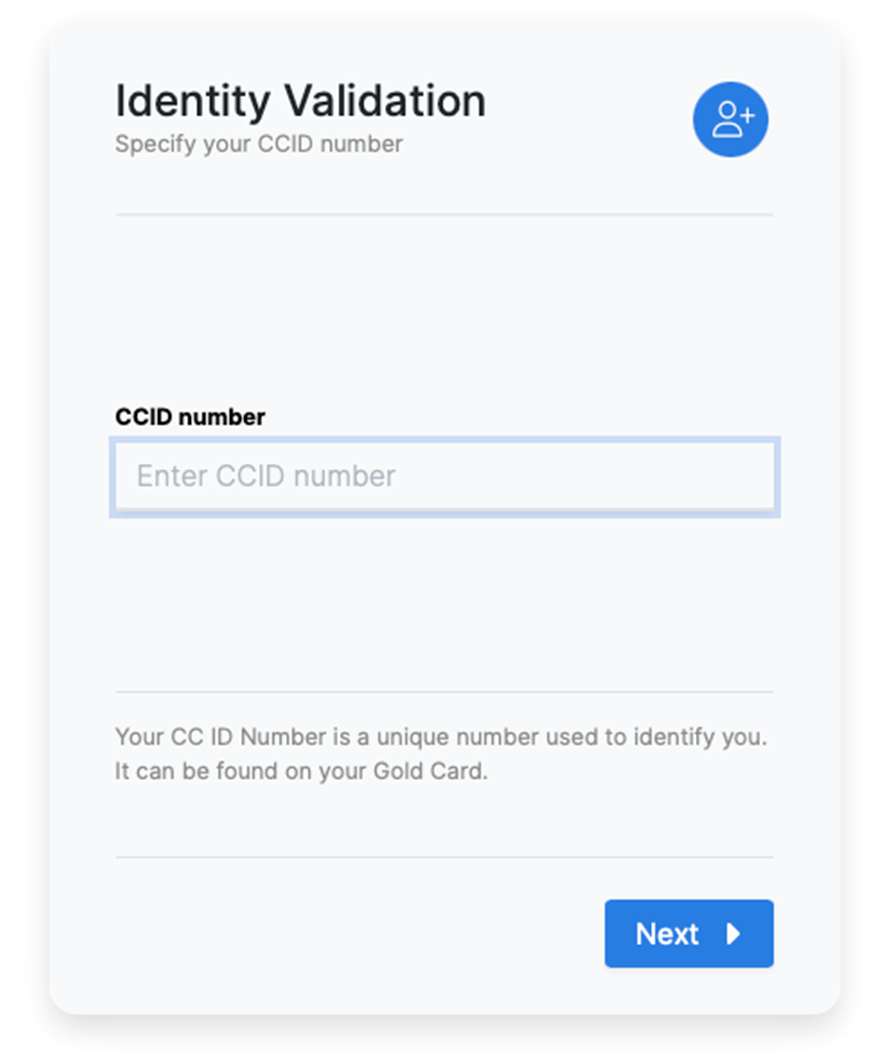
- You can find this number on your Gold Card or from within Banner self-service
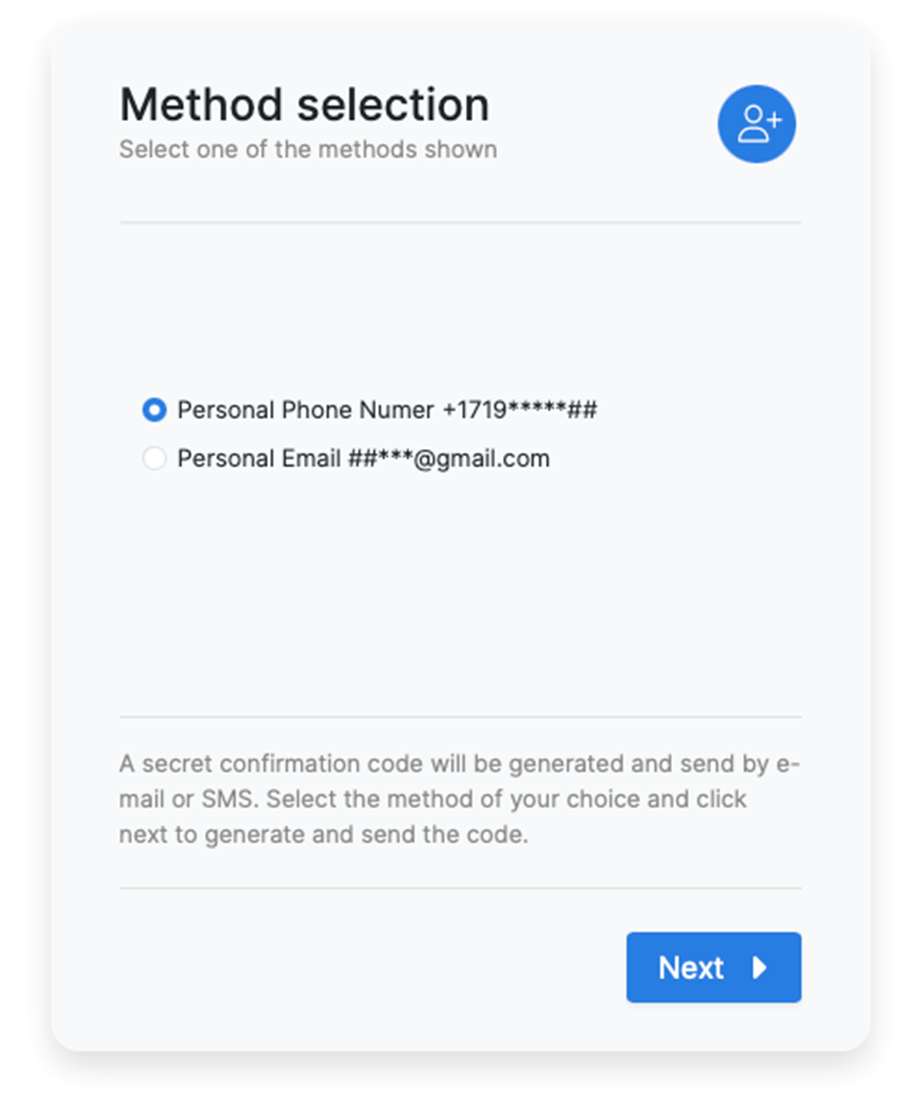
- Upon entering your CCID correctly, select which of your enrolled options you'd like to use to receive a temporary code
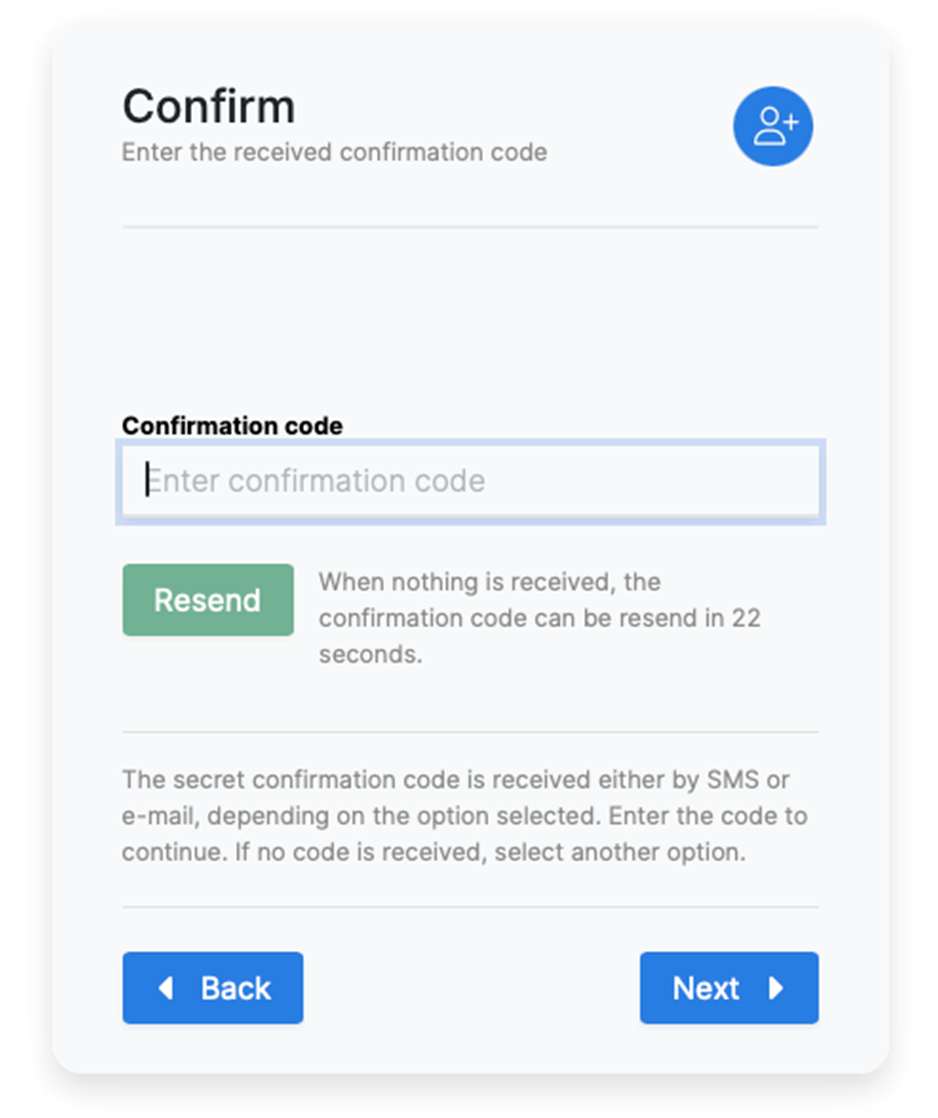
- Enter the code
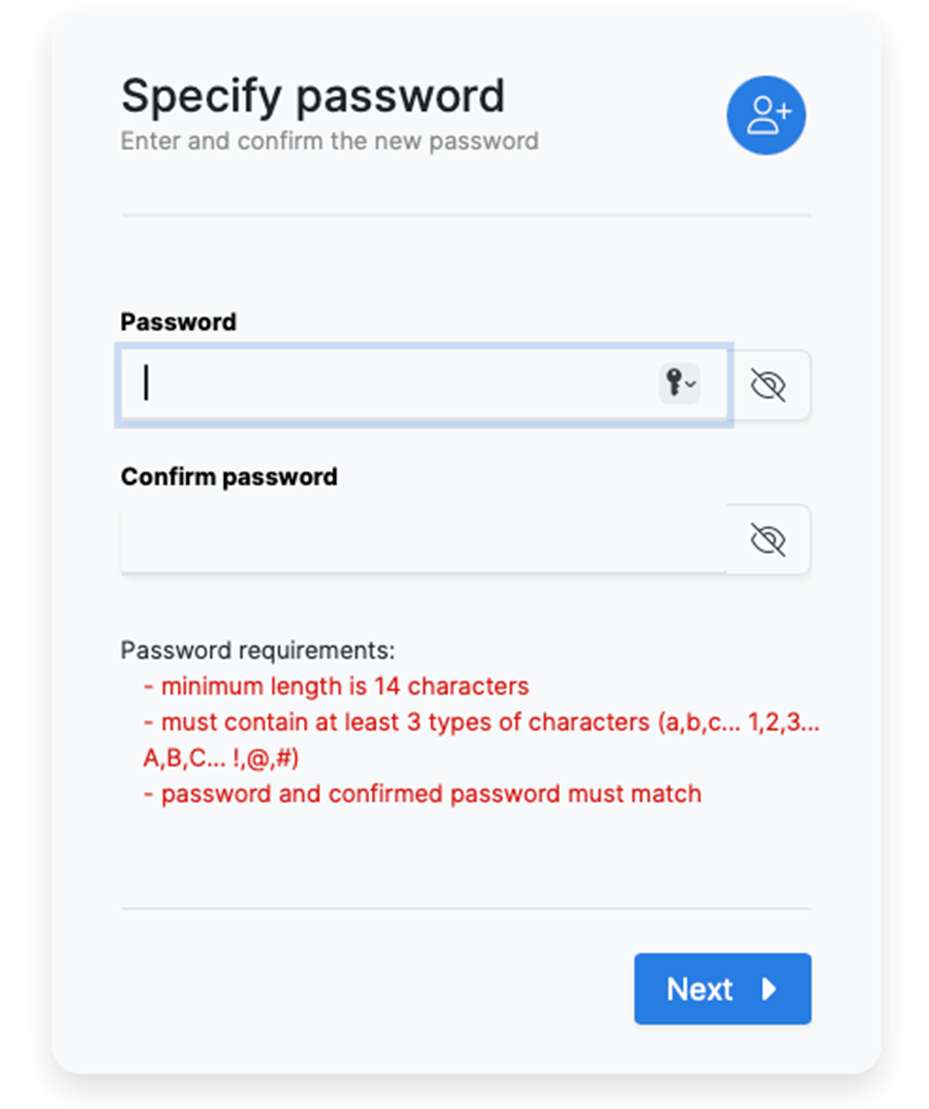
- Upon entering a correct code, you can now choose your new password and then type it a second time to confirm. Note that the new password must meet the password requirements:
- Minimum length 14 characters
- Must contain at least 3 types of characters (a,b,c... 1,2,3...A,B,C...!,@,#)
- Cannot contain your name
- Cannot contain the same character more than twice in a row (ex. !!!!!)
- Cannot be the same as a previous password
If you are unable to use the system to reset your password, then please contact the ITS Solutions Center during business hours by calling 719-389-6449.
Remember to update the password in all the various places it may be saved (password managers and the like). In most cases you will eventually be prompted for the new password, and sometimes that can take a few days for all the things you are logged into.