
OneDrive and Teams Storage
OneDrive is like iCloud drive, Google Drive, or DropBox, but is included with your CC email account and give you 100 GB of online storage space (not 1000 GB or one terabyte as shown in the videos below).
OneDrive is:
- An app that runs on your computer or phone to synchronize your files from Teams or OneDrive
- Space in "the cloud" for your files
- Space on your computer for files to sync to and from
Set up your OneDrive
Migrate H: and I: drive files to OneDrive or Teams
When moving network drives to Teams or OneDrive, we ask that you adhere to the following guidelines; please expand the accordian sections below to find more details:
- Do not transfer specific media, system, and disk images files.
- Adhere to file structure best practices.
- Use clear, succinct, and non-redundant filenames.
- Let your division or department know when and where files will be moved, and who’s handling the transfer.
- Sync files or folders that you regularly use to your computer (do not use the "shortcut" option).
- Don't re-name folders that have corresponding channels
Do not transfer the following filetypes to Teams or OneDrive:
- Executable and binary files:
- .exe, .com, .scr, .pif, .application, .gadget, .msi, .msp, .cpl, .msc, .jar
- Script and macro files:
- .bat, .cmd, .vbs, .vbe, .js, .jse, .ws, .wsf, .wsh, .ps1, .psm1, .hta, .reg
- Disk image and Virtual machine files:
- .iso, .img, .vhd, .vhdx, .vmdk, .ova
- Less common but high risk files:
- .chm (Compiled HTML Help), .lnk (shortcut - can execute code), .url, .inf, .dll, .ocx, .sys
- Certain zip/compressed files:
- .zip, .rar, .7z, .gz, .tar, .iso, .img (if password-protected or deeply nested)
- Excessive numbers of multimedia files (including but not limited to these types)
- .jpg, .jpeg, .png, .gif, .mov, .mpg, .avi, .mp3, .wav, .heif, .heifs, .heic, .heics; .avci, .avcs, .HIF
- Organize folders in sensical hierarchies
- Optimize folder names
- An example of this would be changing:
- p-card receipts > 2025-2026 receipts > 26 October > Professor DGreen > 2026 10 Omelette Parlor receipt 22.36.jpg to:
- p-card > 25-26 > 10-Oct > DGreen > Omelette Parlor 22.36.jpg
- An example of this would be changing:
- Try to use only basic characters in your file and folder names:
- capital and lowercase letters
- numbers
- hyphen (-) and underscore (_)
- Avoid using the following:
- a space at the beginning or end of a file or folder name
- slash (/) and back slash (\)
- colon (:)
- pipe (|)
- quote (")
- question mark (?)
- less-than and greater-than (<) and (>)
- Each channel in Teams has a corresponding folder; that said, most files should probably be sorted into folders in the General channel
- Shared and Private channels are different and their folders live "outside" the regular team
- Keep file names short and to the point. If you have a folder called Contracts, then folders for each year and month in that folder, the filename Lexcorp Contract May 2027.pdf is redundant and should just be shortened to Lexcorp.pdf or the folders removed.
- Alternatively, just make a folder called Contracts, then the filename 2027 Lexcorp.pdf would be just fine, then you don't need a folder with the year.
- Avoid using filenames with a space at the beginning or end or names with the following characters
- " * : < > ? / \ |
- Also, the full path (the name of the file and all the folders its in) cannot exceed 255 characters.
Email or post to Teams when you start moving files - you should mention which files and folders you are moving and where you are moving them to specifically in the team.
To sync files from your OneDrive to your computer or phone (see the mac and PC videos above):
- Open the OneDrive app (you may need to download it on macOS or mobile device)
- Enter your CC email account - the system will send you to Single Sign In
- Enter your username and password for your CC account
To sync files from Teams:
- Open the Team you want to sync files from either in your web browser or in the Teams app
- Open the General Channel
- Click Shared near the top of the screen (it might be "under" or next to "Posts"
- Just above the list of files, click the Documents title next to the name of the channel
- Once that has loaded go up to the menu bar on that page - it should have a + New button on the left, then say, Upload, Edit in grid view, and other items. You want to click
 or click the ... then click
- Do not click "Add shortcut to OneDrive" - this can cause issues
- Click Allow on the next pop-up (if it comes up) asking your computer to allow OneDrive to sync files
- Your files will sync and you should have a new icon in your file manager:
- Finder on macOS will have OneDrive - Shared Libraries - The Colorado College
- File Explorer on Windows will have The Colorado College
show all / hide all
Audit your OneDrive shared Items
Visit https://www.coloradocollege.edu/ssi and click Email (Office 365) and sign in. Then in the application menu (top left of the page), click OneDrive.
 A "fly-out" will open on the right side of your screen.
In column H, if you see Anyone, that means anyone in the world can edit or see that file. You may want to go back into your OneDrive, find that file, right-click it (or use the vertical 3-dot menu), and choose Manage access. Then click the ellipses next to the share link that says Anyone with the link can edit:
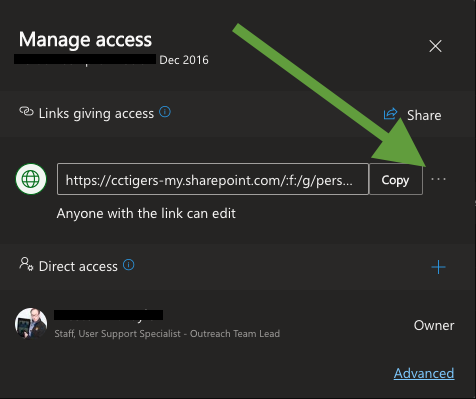
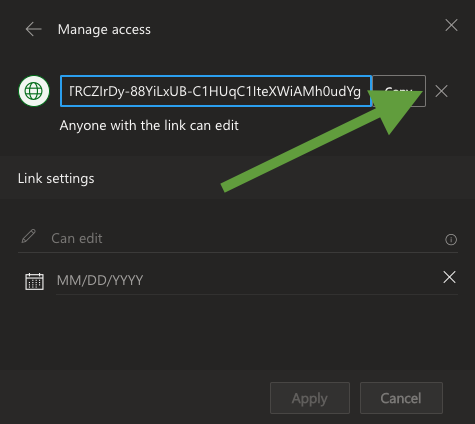
Then click the X and Apply to delete the link.
show all / hide all
Securely request files
- Visit Single Sign In and click Email (Office 365)
- Sign in with your username and password
- Click OneDrive from the Office online app launcher menu or visit this OneDrive link
- Navigate in your OneDrive so you can see the folder where you want the files to be put
- Click the circle which appears to the left of the folder
If there is no folder into which you want the files to be put, create a new folder by clicking the "+ Add new" button near the top left of the OneDrive page
- A dialog box will pop up:

- Fill in the description of the file you are requesting and click the Next button
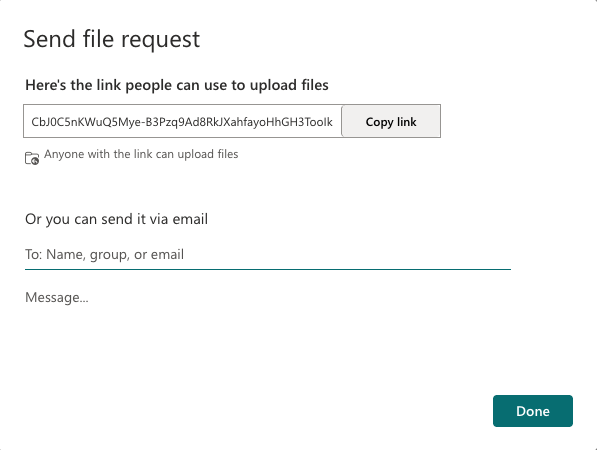
Copy the link to the file request and post it or email it from your own email or use the two "send it via email" spaces to send the link directly to a few people.
show all / hide all