
Virtual Lab
In addition to physical computer labs, CC also uses a virtual computer lab which you can connect to from your computer or other device and use specialized software (such as SPSS, Mathematica, etc.) without having to install that software directly on your computer.
You can connect to the virtual lab as a web service at https://windows.cloud.microsoft (log in with your CC email address just like any other single sign in application). This is the recommended method for infrequent or quick uses, and for Linux users.
We recommend installing the "windows app" on a computer for the best overall experience if you will be using it frequently on an ongoing basis and have simple guides below for PCs and Macs. The same general process applies to other operating systems as well (such as Android, iOS, ChromeOS, etc.) Not every OS has a windows app available at this time, so if you can't find it then use a different device or use the web service.
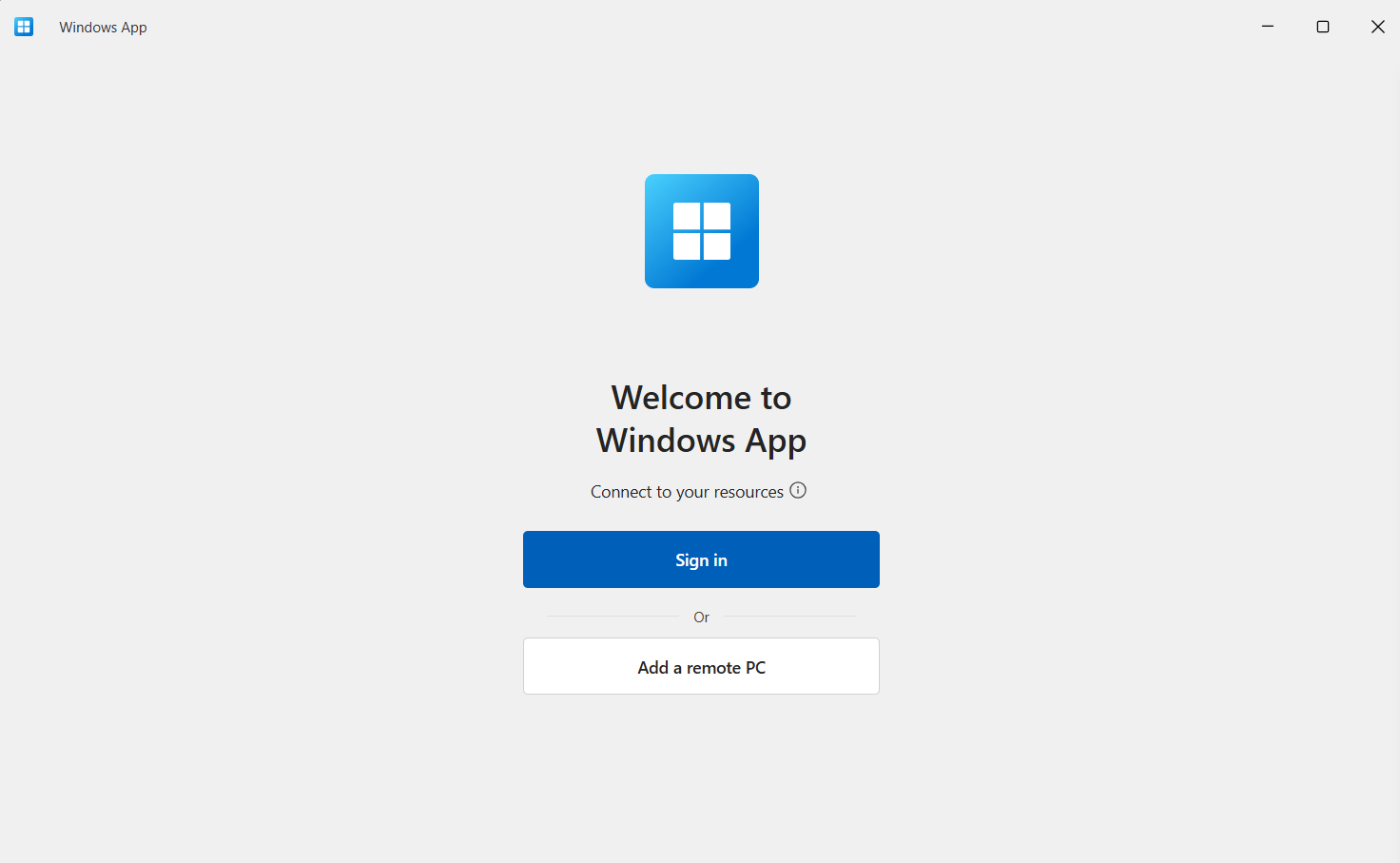
- Install the Windows App from the Microsoft Store: https://apps.microsoft.com and launch it.
- Select "Sign In" and enter your CC email address, then proceed through the single sign in process as usual (which includes your multifactor authentication)
- Once logged in, you will see at leats one option labeled with VLAB (there may be other options as well). Click that, and it will launch the virtual lab environment.
- Install the Windows App from the Apple App Store: https://apps.apple.com/us/app/windows-app/id1295203466
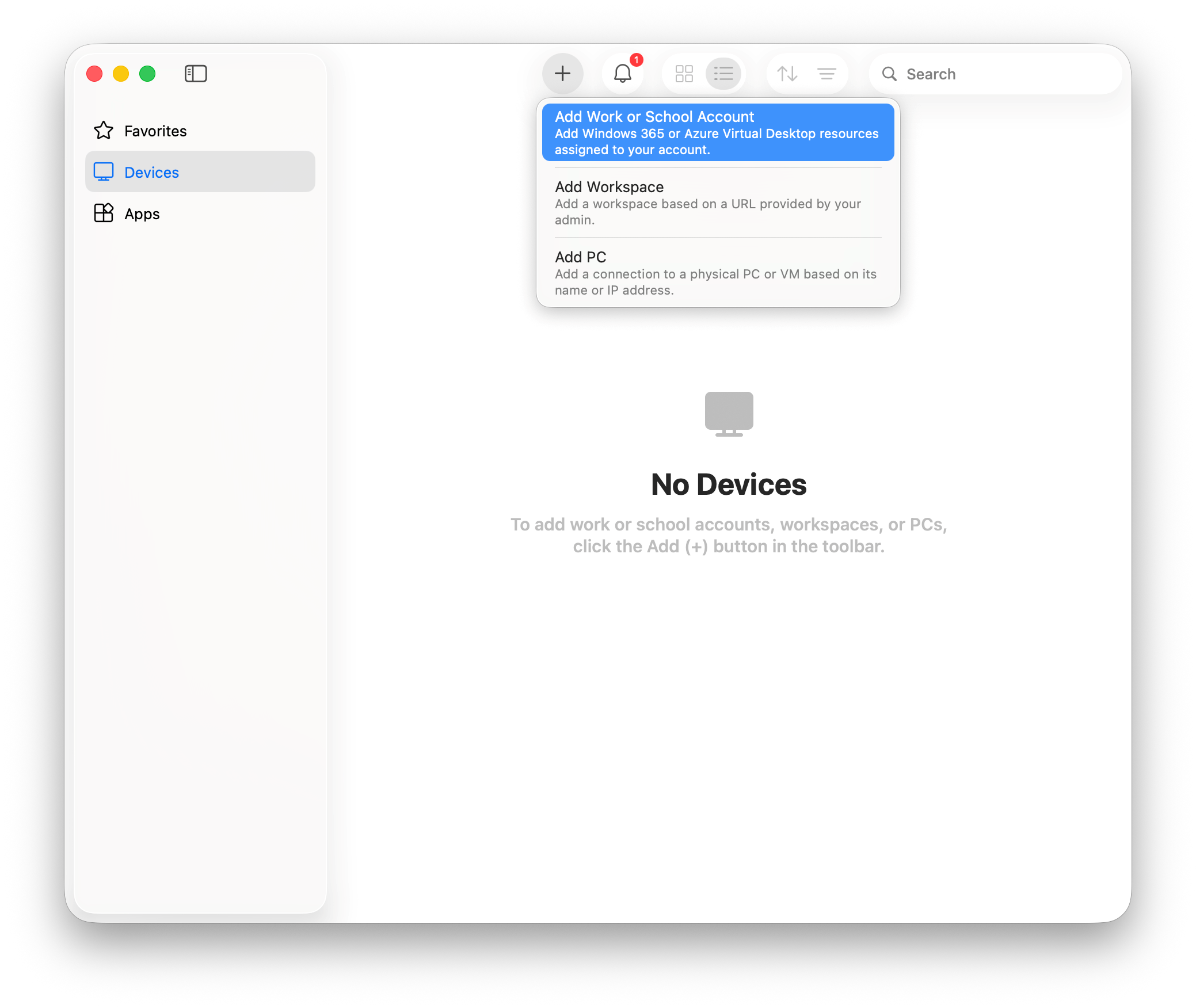
- Select the + button near the top and then "Add Work or School Account"
- Enter your CC email address and then proceed through the single sign in process as usual (which includes your multifactor authentication)
- Once logged in, you will see at leats one option labeled with VLAB (there may be other options as well). Click that, and it will launch the virtual lab environment.
show all / hide all